To share part of a YouTube video, decide first whether you need an end time. If you just want someone to start watching at a point, YouTube's own Share dialog does it: tick "Start at" and copy the link. If you want a bounded moment that stops where you say, you need a tool that holds both a start and an end time, because YouTube's link format only carries the start. After the Clips feature was retired on April 17, 2026, that bounded job moved to URL-native clippers like Segue: paste the URL, mark in and out points, share one link.
That's the short answer. The longer one is that "share part of a video" is really two different jobs, and the right tool depends on which one you mean. This post separates them, walks through each method, and shows what to reach for when you need a precise moment rather than just a starting point.
Two jobs hiding in one phrase
"Share part of a YouTube video" sounds like one task. It's two.
Job one: start watching here. You want to drop someone into a long video at a specific point. A lecture at the part that answers their question. A podcast at the segment you discussed. The end doesn't matter; they'll watch on from there. This job has always been easy, and it still is.
Job two: share this exact moment. You want them to see one bounded piece. The 30 seconds at 14:22. A single answer in a 90-minute interview. The end matters as much as the start, because the point is the moment, not the rest of the video. This is the job that got harder in 2026, because the first-party tool that did it is gone.
Most confusion about "how to share part of a video" comes from reaching for a job-one tool to do a job-two task. So sort your task first, then pick the method.
Job one: link to a starting point
If you only need a start time, YouTube already does this, two ways.
The Share dialog. On the watch page, click Share, tick "Start at", and the time fills in from where you're paused. Copy the link. It looks like youtube.com/watch?v=VIDEO&t=863s and opens the full video at 14:23.
By hand. Append ?t=863 (or &t=863 if the URL already has a query) to the watch URL. Same result. The number is seconds.
Both are free, native, and unfurl correctly as a playable card on Discord, X, Slack, and most platforms. If "watch from here" is genuinely the whole task, stop here. The simpler tool wins, and nothing about it broke in 2026.
Job two: share a bounded moment (this is what changed)
Here's where it gets harder. To share a moment with a defined end, you need both endpoints on the link. YouTube's format doesn't carry an end.
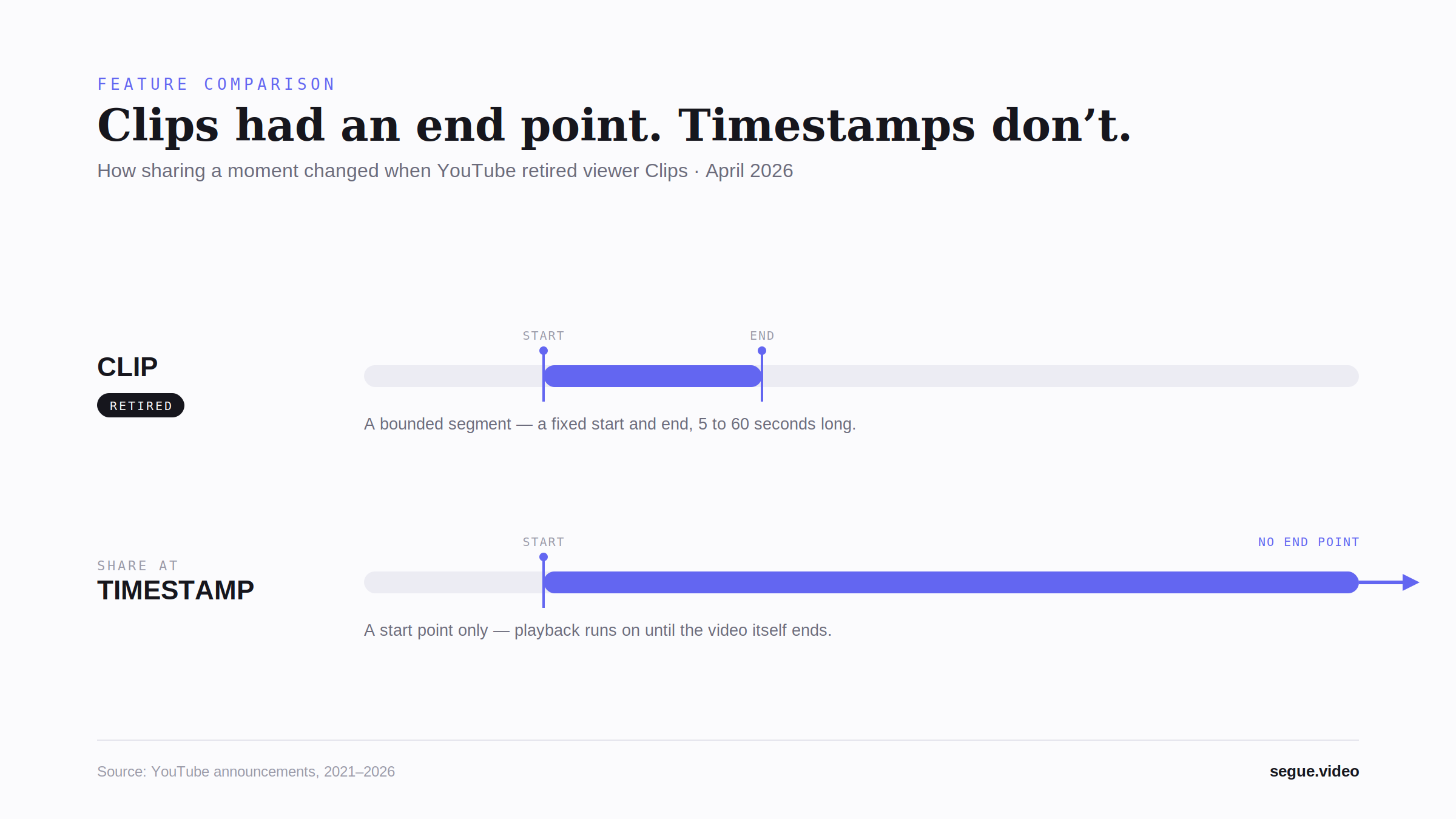
Until April 17, 2026, the first-party answer was YouTube Clips: set a start and an end (5 to 60 seconds), get a dedicated /clip/<id> page, share it. Views counted for the creator. Then YouTube retired the viewer-side Clips feature and pointed users at Share-at-Timestamp, which only sets a start. So the official replacement does job one, not job two. The full post-mortem on what was lost is in YouTube killed Clips: what to use instead in 2026, and the gap in the official replacement is covered in the Share-at-Timestamp breakdown.
The job didn't disappear; the first-party tool did. To get an end time back, you share through a tool that controls the player surface and holds both endpoints. Segue is the one we built for this. The loop is four steps and runs entirely in the browser:
1. Paste the YouTube URL. Open the studio at /studio and paste any public URL. The video loads in a browser-native player streaming straight from YouTube. No install, no account, nothing downloaded.
2. Mark the in point. Drag the playhead to the start of the moment and click Set in. There's a timecode field if you want to type an exact value.
3. Mark the out point. Scrub to the end and click Set out. The clip is now a precise range with both endpoints: the capability Share-at-Timestamp does not provide.
4. Share one link. Click Share. The studio generates a /m/<slug> link that holds the clip. Paste it anywhere that handles links. The recipient clicks and sees only that moment, in a clean viewer that streams from YouTube directly.
The free tier handles up to three clips per mix on a single video with no account. Pro ($5/month or $29/year) adds unlimited clips, multi-video mixing on the same channel, and clean short links. Pro Lifetime ($59 one-time, capped at the first 500 buyers or Sept 8, 2026) is the launch-window option. Full detail on the pricing page.
How the methods compare
The first row is the deciding question: can you set an end time? That's what separates job one from job two.
| Method | Set an end time? | No download? | Multiple moments? | One share link? | Cost |
|---|---|---|---|---|---|
| YouTube Share dialog ("Start at") | No | Yes | No | Yes (deeplink) | Free |
| YouTube Clips (retired Apr 17, 2026) | Yes (5–60s) | Yes | No | Yes (/clip/<id>) |
Free, but gone |
| Download, trim, re-upload | Yes | No | Yes | Yes (your hosted file) | Time and attribution cost |
| Segue (URL-native) | Yes | Yes | Yes (3 free / unlimited Pro) | Yes (/m/<slug>) |
Free tier; Pro from $5/mo |
The download-and-reupload row does the bounded job, but it strips the view from the original creator and costs ten minutes per clip. Segue keeps the view with the creator (every play streams through YouTube's player) and runs in under a minute. The trade-off Segue makes is the same one any embed makes: if the source video is deleted or has embedding disabled, the clip won't play. The detail on attribution and the no-download model is in how to clip a YouTube video without downloading.
Edge cases
You need several moments, not one. If the task is a best-of (three answers from one interview, five peaks from a podcast episode), don't send five links. Chain them into one mix. That's a job of its own, covered in share multiple parts of a YouTube video as one link.
The video has embedding disabled. Some music labels and rights-holders turn off embedding. When they do, the video can't be clipped through any embed-based tool, including the old Clips feature when it was alive. The player respects the permission. If Segue refuses to load a video, this is almost always why.
You truly only need a start time. Then job one is your task, and YouTube's own Share dialog is the right tool. Don't reach for a clipper to do something the native link already does for free.
Share your first moment free
If you used to reach for Clips to share a moment, the URL-native workflow is the closest thing to that loop back. Open the studio, paste a URL, mark in and out, share one link. Free for up to three clips on a single video, no account.
Skip the comparison shopping.
Open Segue, paste a YouTube URL, set in and out points, share one link. Free tier, no account.
Frequently asked questions
How do I share a specific part of a YouTube video?
Pick the method that matches the job. If you just want someone to start watching at a point, YouTube's own Share dialog does it: tick 'Start at', copy the link, and it opens the full video at that timestamp. If you want to share a bounded moment with both a start and an end time, YouTube no longer has a first-party tool for that (the Clips feature was retired April 17, 2026). The replacement is a URL-native clipper like Segue: paste the video URL, mark in and out points on the timeline, and share the link it generates. The clip plays in a clean viewer that streams from YouTube, so the view still counts for the creator.
How do I link to a specific part of a YouTube video?
For a start point only, add ?t=90 (90 seconds) to the watch URL, or use the Share dialog's 'Start at' checkbox. That carries a start time and nothing else. To link to a part with a defined end (a 30-second moment, a single answer in an interview), you need a tool that holds both endpoints. YouTube's link format only carries the start, so the bounded version of this job moved to third-party tools after Clips was retired. Segue encodes both the start and the end into the share link and plays the exact range.
Can I set a start and an end time on a YouTube link?
Not from YouTube directly. The native ?t= parameter only sets a start time, and the watch page ignores end-time hints even when you append them by hand. The old Clips feature was the first-party way to set both, and it was retired on April 17, 2026. To get an end time back, share through a tool that controls the player surface. Segue stitches both endpoints into the share link, so the clip stops where you set it instead of playing to the end of the source video.
How do I send someone just one moment from a long video?
Mark the moment as a clip and send the link, rather than sending the whole video with a 'skip to 14:22' note. Open the video in Segue's studio, drag the playhead to the start of the moment and set the in point, scrub to the end and set the out point, then copy the share link. The recipient clicks once and sees only that moment, in a viewer that streams from YouTube. No account is needed for up to three clips on a single video on the free tier.
What replaced YouTube Clips for sharing a moment?
Nothing from YouTube directly. The official pointer after the April 17, 2026 retirement was Share-at-Timestamp, which only sets a start time, so it does not replace what Clips did. YouTube's own note steered people to third-party tools with clipping features. For the specific job Clips handled (a bounded moment with a start and end, on a dedicated share page that views still credit to the creator), a URL-native clipper like Segue is the closest like-for-like. The full breakdown is in the YouTube Clips head-to-head.
Can I share more than one part of a video at once?
Yes, with the right tool. YouTube never let you sequence multiple moments into one link; the workaround was posting several timestamp links in a row. Segue chains multiple clips into a single share link that plays them back-to-back with smooth transitions, including clips from other videos on the same channel on the Pro tier. If your job is a best-of (three answers from one interview, five peaks from a podcast), that is a single mix, not five links. See the guide on sharing multiple parts as one link.